Scan your computer with McAfee
There are two different ways you can scan with McAfee.
How to scan with McAfee using the System Tray icon
Follow the steps below to scan your computer using McAfee's system tray icon.
1. Right click on the McAfee icon located in the bottom-right corner of the screen, right next to the time.
2. Hover with your cursor over the Scan option and a new menu will appear with types of scans that you can perform.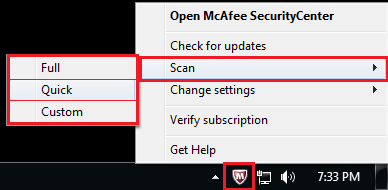
3. Click on the Scan type that you want and the Scan Window should open on your screen.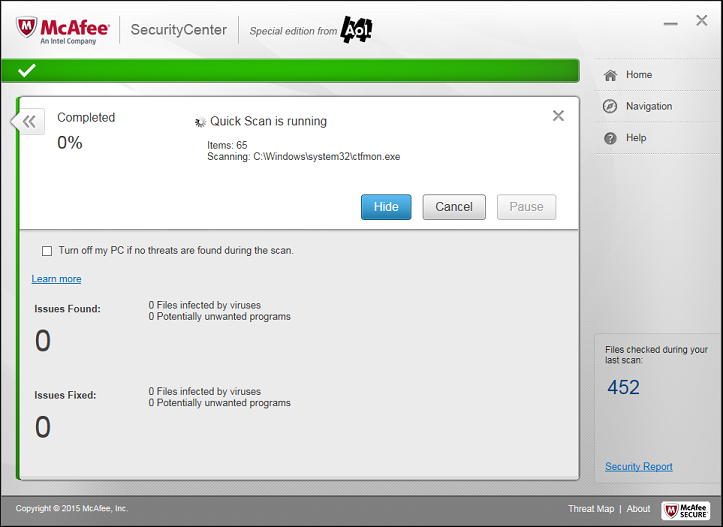
4. Wait for the scan to be complete and review the results.
Note: If you select the 'Custom' option from the menu the Custom Scan window will appear on your screen. Here you can manually select which locations McAfee should scan and what kind of threats it should look for on your computer.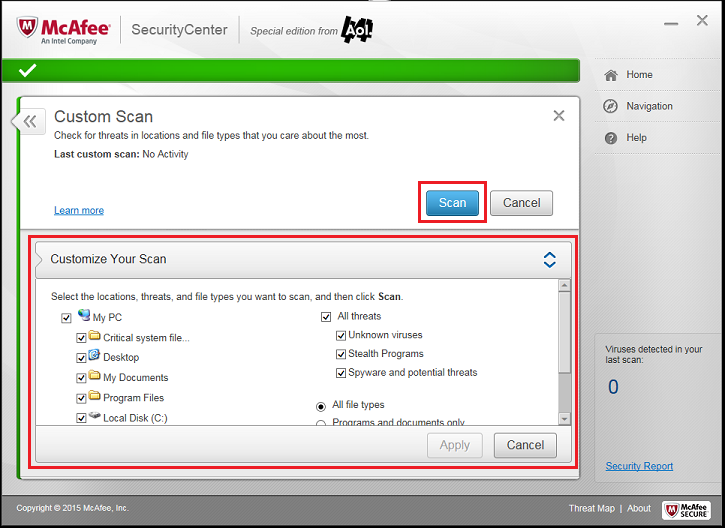
How to scan with McAfee using the Main Window
Follow the steps below to scan your computer using McAfee's main window.
1. Perform a double-click on McAfee's icon that should be located on your desktop.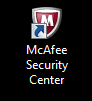
2. In McAfee's main window click on "Schedule and run scans". This is located inside the Virus and Spyware Protection category.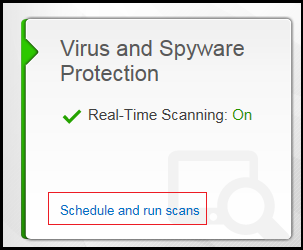
3. Click on Scan Your PC.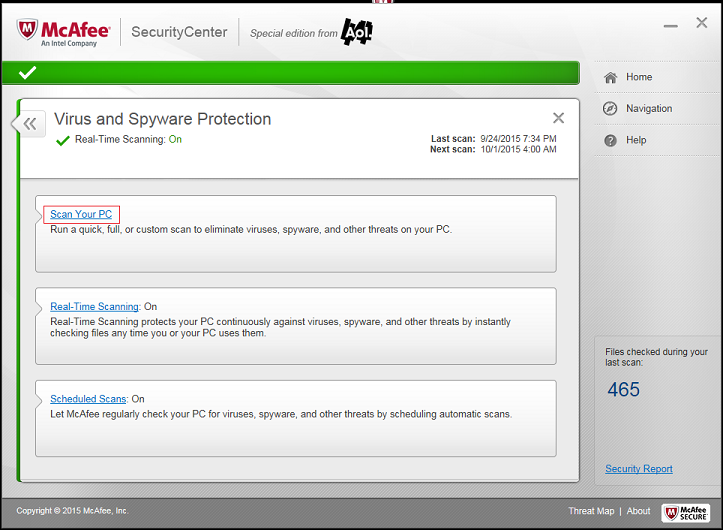
4. Click on the type of scan that you want to perform.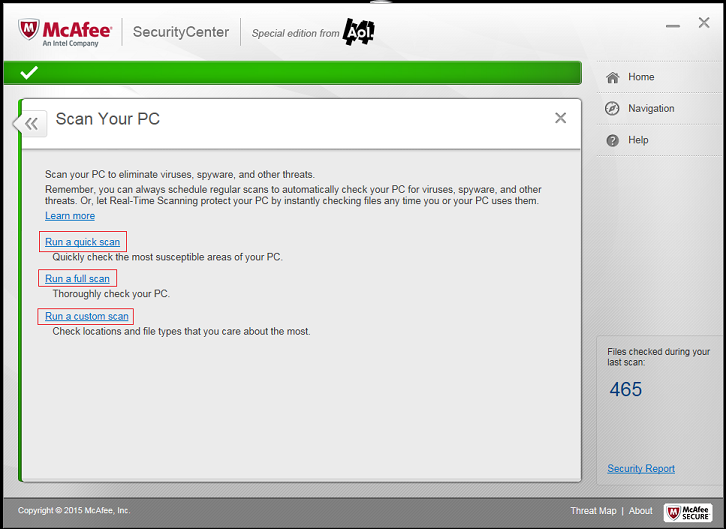
5. The Scan Window will appear on your screen.
6. Wait for the scan to complete and review the results.
Note: If you select the 'Run a custom scan' option the Custom Scan window will appear on your screen. Here you can manually select which locations McAfee should scan and what kind of threats it should look for on your computer.
Disable or Enable Virus Protection
If you disable virus protection, your computer will not be monitored for virus activity. If you must stop virus protection, ensure that you are not connected to the Internet.
Note: Non-members or those on the Free AOL plan can subscribe to McAfee Internet Security Suite – Special Edition from AOL for a substantially discounted annual fee.
The instructions given below are for the older version of McAfee.
Disable virus protection
Please note that disabling virus protection also disables real-time spyware, e-mail, and instant message protection.
To disable virus protection
1. On the Windows taskbar, next to the clock, double-click the McAfee ( M) icon.
Note: If you are using Windows® 7 and don't see the McAfee icon next to the clock, click the arrow next to the clock to reveal hidden icons. Please know that you can customize your Windows 7 System Tray.

2. On Advanced Menu, click the Configure tab.
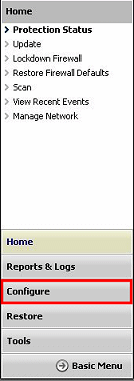
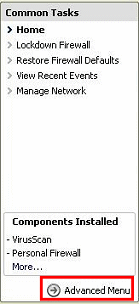
Note: If you are unable to see the Configure link, click the Advanced Menu link.
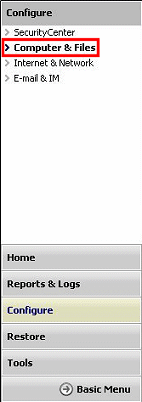
3. In the Configure pane, click the Computer & Files link.
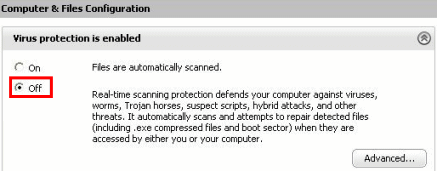
4. On the Computer & Files Configuration pane, under Virus protection is enabled, click the Off option.
5. In the confirmation dialog box, choose one of the following:
- To restart virus protection after a specified time, click the Select when to re-enable real-time scanning drop-down menu, choose a time, and then click OK.
- To stop virus protection from restarting after a specified time, click the Select when to re-enable real-time scanning drop-down menu, click Never, and then click OK.
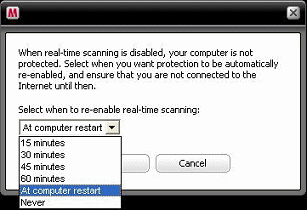
6. Click X on the upper right to close the McAfee SecurityCenter window.
Note: If real-time protection is configured to start when Windows starts, your computer is automatically protected when you restart the computer.
Enable virus protection
Virus protection continuously monitors your computer for virus activity; therefore, it is important that you enable virus protection on your computer.
To enable virus protection
1. On the Windows taskbar, next to the clock, double-click the McAfee ( M) icon.
Note: If you are using Windows 7 and don't see the McAfee icon next to the clock, click the arrow next to the clock to reveal hidden icons. Please know that you can customize your Windows 7 System Tray.
2. On Advanced Menu, click the Configure tab.
Note: If you are unable to see the Configure link, click the Advanced Menu link.
3. In the Configure pane, click the Computer & Files link.
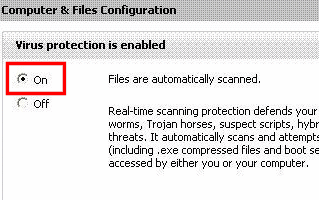
4. On the Computer & Files Configuration pane, under Virus protection is disabled, click the On option.
How to Configure Real-time Protection
You can modify real-time virus protection. For example, you can only scan program files and documents, or disable real-time scanning when Windows starts (not recommended).
Note: We have launched McAfee 12.8. If you have the older version of McAfee, just follow the instructions below.
Configure Real-Time Protection
1. On the Windows Taskbar, next to the clock double click the Mcafee ( M) icon.
2. On the Advanced Menu link, click the Configure tab.
Note: If you are unable to see the Configure tab, click the Advanced Menu link.
3. On the Configure tab, click the Computers & Files link.
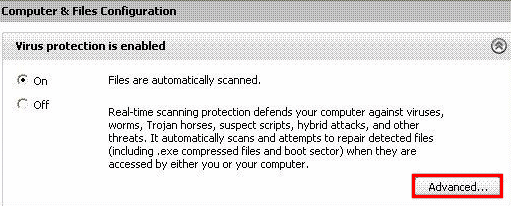
4. Under the Virus protection is enabled section, click the Advanced button.
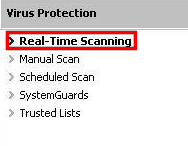
5. On the Virus Protection screen, click Real-Time Scanning.
6. Select or clear the following check boxes:
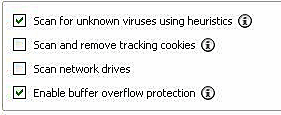
- Scan for unknown viruses using heuristics: Files are matched to signatures of known viruses in order to detect signs of unidentified viruses. This option provides the most thorough scan, but is generally slower than a normal scan.
- Scan and remove tracking cookies: Cookies that potentially gather and transmit data without your permission are detected and removed. A cookie identifies users when they visit a Web page.
- Scan network drives: Drives connected to your network are scanned.
- Enable buffer overflow protection: If buffer overflow activity is detected, it is blocked and you are alerted.
7. Click one of the following options:
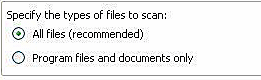
- All files (recommended): Every file type that your computer uses is scanned. Use this option to get a thorough scan.
- Program files and documents only: Only program files and documents are scanned.
8. Click the OK button

General Help With McAfee Security Center - Special Edition from AOL
The new McAfee Internet Security Suite - Special edition from AOL is a proactive, self-updating security bundle that protects your identity and computer from viruses, spyware, email and IM scams, hackers, and online predators. It also provides backup for important files. You can now surf the web, shop, send e-mails and instant messages, and download files with confidence.
FAQs
How do I install McAfee Internet Security Suite - Special edition from AOL?
Close all open browser windows. Launch a browser window. Go to aol.com/products/adv-lp/mcafee and install McAfee Internet Security Suite - Special edition from AOL. For detailed instructions on how to install the McAfee software, refer to our help article Installing and Uninstalling McAfee.
How can I prevent specific programs and websites from accessing the internet?
You can block specific programs from accessing the internet by using firewalls. However, ensure that blocking these programs does not interrupt your network connection or hinder another program from accessing the internet.
For more information on how to block access to a program, refer to our help article Using McAfee: Firewalls
How do I use the Maintain Your Computer feature in McAfee?
Maintain Computer is a special feature of McAfee Security Center - Special edition from AOL. It helps you optimize your computer's performance.
You can perform the following operations using this feature:
- McAfee QuickClean
- Disk Defragmenter
- Task Scheduler
What should I do if I don't receive updates from McAfee?
You need to have updated security software to protect your computer against the latest threats. If your McAfee software is not receiving updates, then refer to our help article Troubleshooting McAfee
Maintain your Computer Using McAfee Security Center - Special Edition by AOL
Maintain your computer using McAfee SecurityCenter - Special edition from AOL allows you to optimize your computer's performance.
Note: Non-members or those on the Free AOL plan can subscribe to McAfee Internet Security Suite - Special edition from AOL for a substantially discounted annual fee.
Use the McAfee QuickClean feature
To Use the McAfee QuickClean feature
McAfee QuickClean cleans your internet cache, temporary files, registry keys, deleted email messages, temporary files, and other non-essential files that are taking up space on your computer.
To clean your computer:
1. In the Windows taskbar, next to the clock, double-click the McAfee icon.
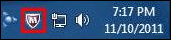
Note: If you don't see the McAfee icon next to the clock, click the arrow next to the clock to reveal the hidden icons.
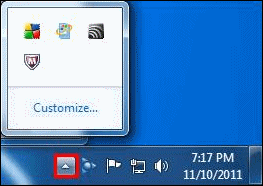
2. Click PC and Home Network Tools.
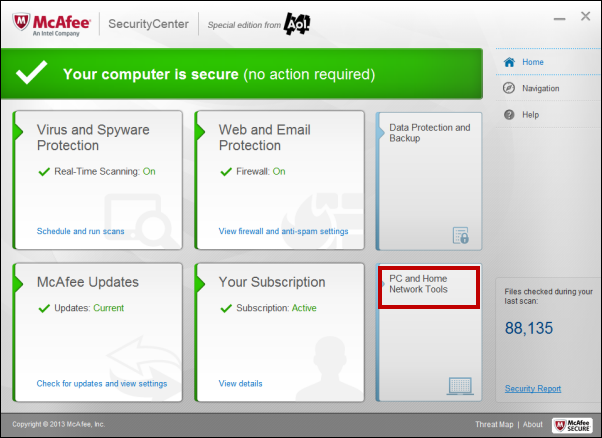
3. Click the QuickClean link.
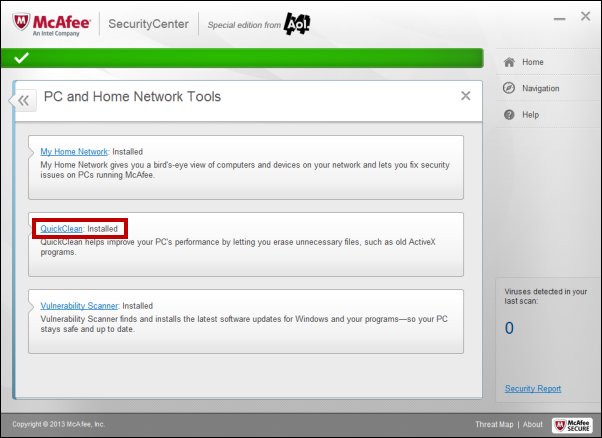
4 To adjust QuickClean settings, click Settings and select the System Files, Browser Files and Email you’d like to clean by checking the appropriate checkboxes, then click Apply.
5. Click on the Clean button to start the cleaning process.
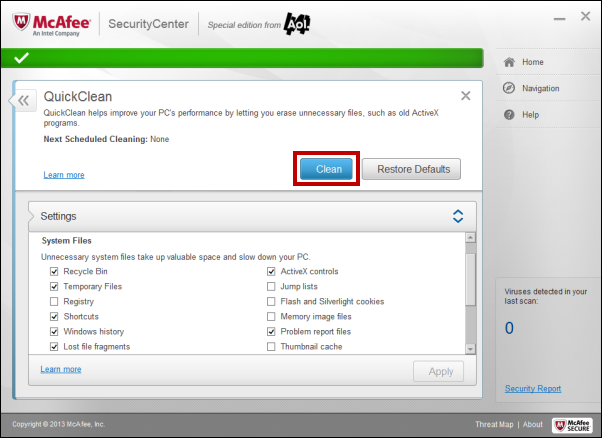
6. On the Confirm QuickClean window, click Continue.
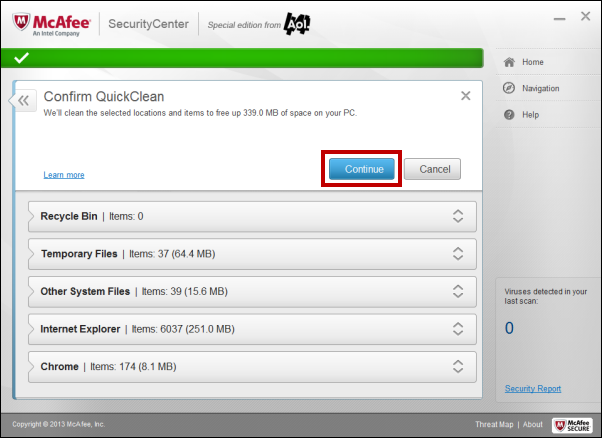
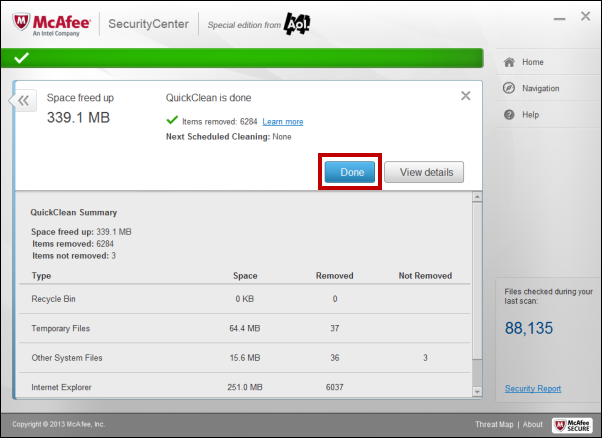
7. Once QuickClean is complete, click Done.
Use the Defragment feature
To Use the Defragment feature
Defragmenter is a Windows program designed to increase the speed of your computer by rearranging files stored on a disk to occupy contiguous storage locations.
To run Defragmenter using McAfee SecurityCenter - Special edition from AOL version 12.8:
1. In the Windows taskbar, next to the clock, double-click the McAfee icon.
Note: If you don't see the McAfee icon next to the clock, click the arrow next to the clock to reveal the hidden icons.
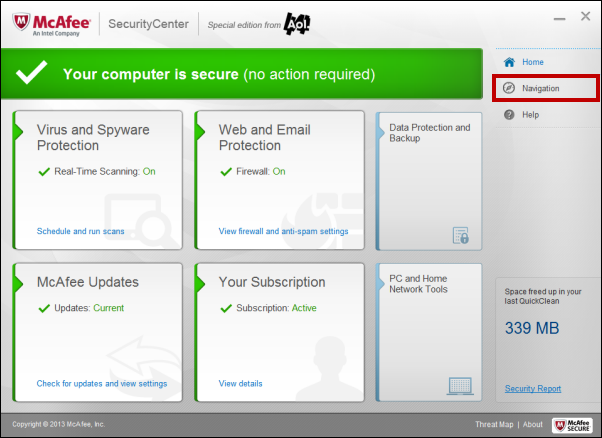
2. Click Navigation in the upper-right corner.
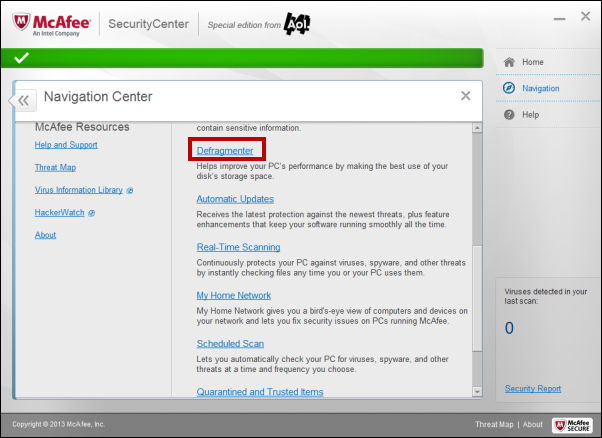
3. Scroll down the Navigation Center pane and under Features, click the Defragmenter link.
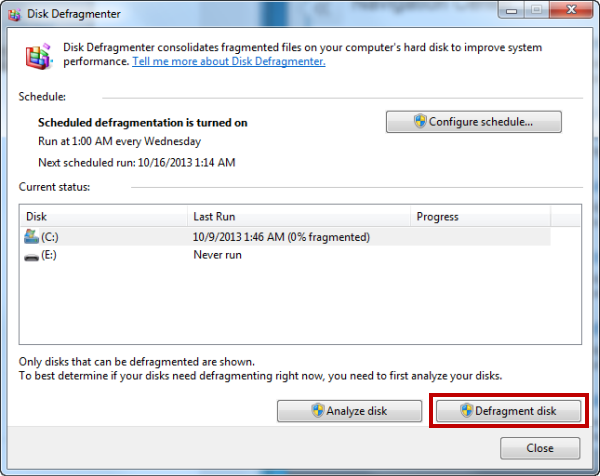
4. Select the drive you want to defragment and click the Defragment disk button.
Use the Schedule Option to Schedule QuickClean
To Use the Schedule Option to Schedule QuickClean
Schedule allows you to create Windows scheduled tasks to clean your computer routinely.
To use schedule:
1. In the Windows taskbar, next to the clock, double-click the McAfee icon.
Note: If you don't see the McAfee icon next to the clock, click the arrow next to the clock to reveal the hidden icons.
2. Click PC and Home Network Tools.
3. Click the QuickClean link.
4. Click Schedule.
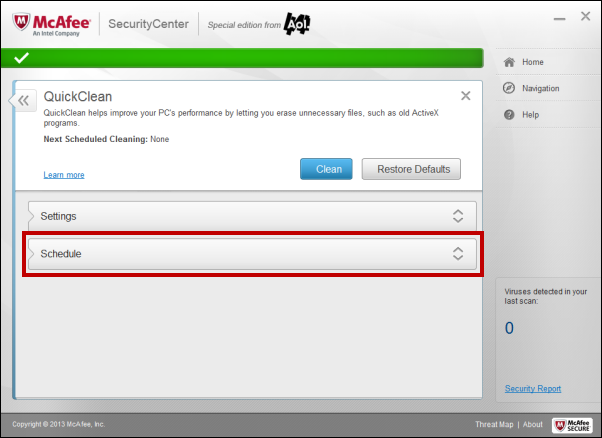
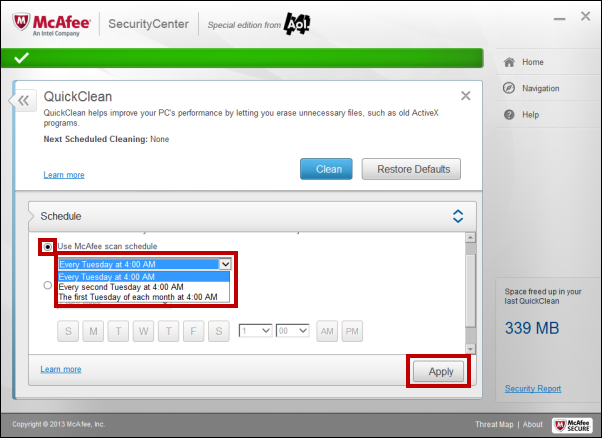
5. Click the Use McAfee scan schedule option and then click the drop-down menu to choose a schedule. Once you’ve chosen a schedule, click Apply.
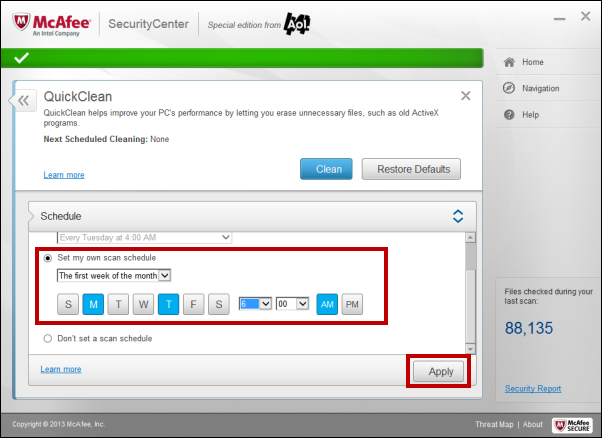
Or select Set my own schedule option and choose your preferred scheduled QuickClean. Once you’ve chosen a schedule, click Apply.
All set. You don’t have to worry about clearing unnecessary files anymore now.
Enable and Disable Spyware Protection
Spyware protection removes spyware, adware, and other potentially unwanted programs from your computer. These programs gather and transmit data from your computer without your permission. You can disable or enable McAfee spyware protection at any time. See below for instructions on how to enable/disable McAfee spyware protection.
Note: The instructions given below are for McAfee Internet Security Suite – Special Edition from AOL version 12.8. To upgrade to the newest version of McAfee, check out our help article How do I upgrade my McAfee Internet Security Suite - Special edition
Enable McAfee spyware protection:
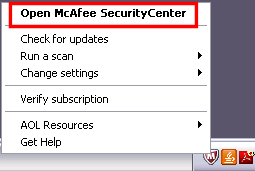
1. In the Windows taskbar, next to the clock, right-click the McAfee (M) icon, and then click Open McAfee SecurityCenter.
Note: Alternatively, you can click Start, select All Programs, select McAfee, and then click McAfee SecurityCenter.
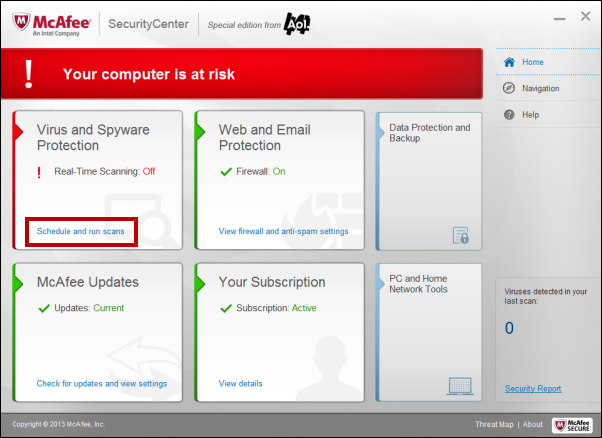
2. If you see the message Your computer is at risk (as shown in the image below), click Schedule and run scans.
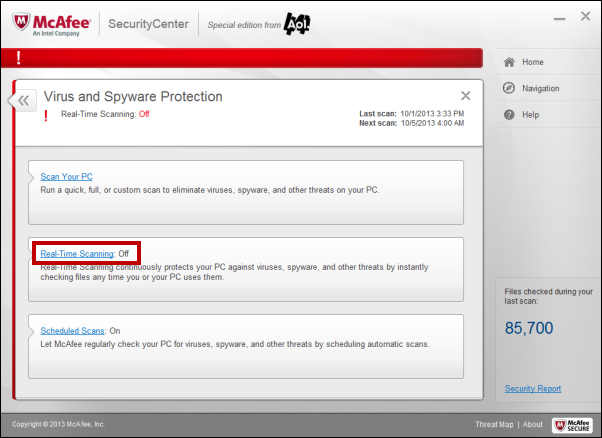
3. Click Real-Time Scanning.
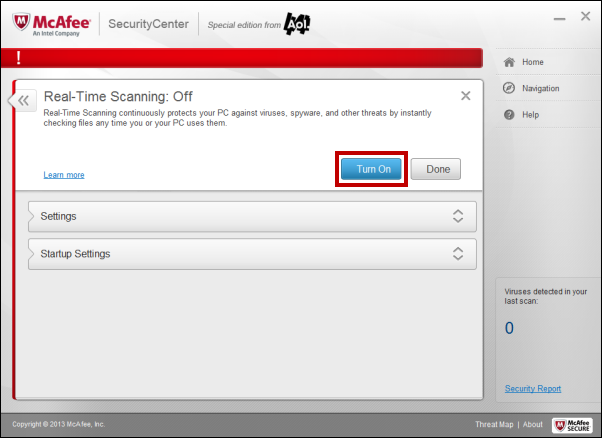
4. Click Turn On to turn Real-Time Scanning on.
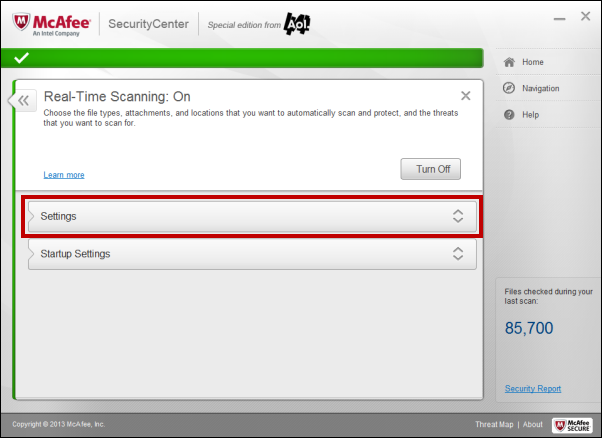
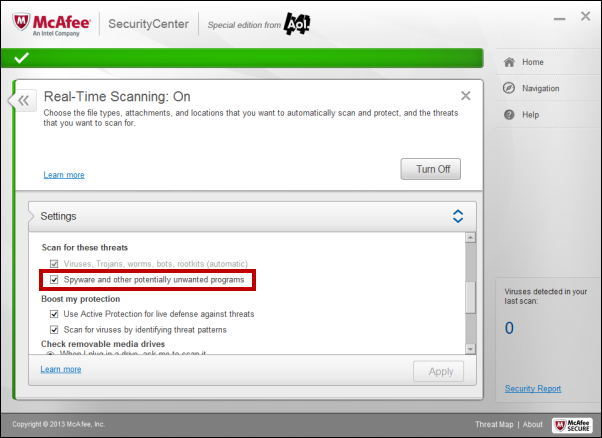
5. Click Settings.
6. Scroll down to the Scan for these threats section, check the box next to Spyware and other potentially unwanted programs, and then click Apply.
Disable McAfee spyware protection
IMPORTANT: If you disable McAfee spyware protection, unwanted programs, spyware, and adware, if present on your computer, will remain undetected.
To disable McAfee spyware protection:
1. In the Windows taskbar, next to the clock, right-click the McAfee (M) icon, and then click Open McAfee SecurityCenter.
Note: Alternatively, you can click Start, select All Programs, select McAfee, and then click McAfee SecurityCenter.
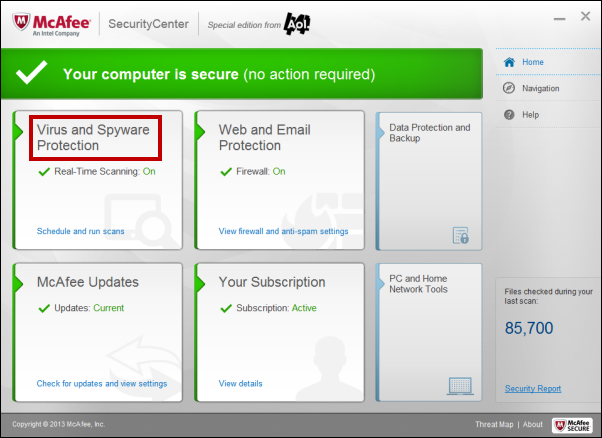
2. On the McAfee SecurityCenter window, click Virus and Spyware Protection.
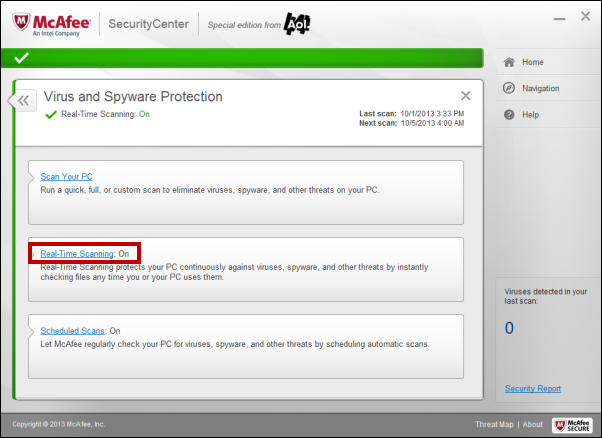
3. Click Real-Time Scanning.
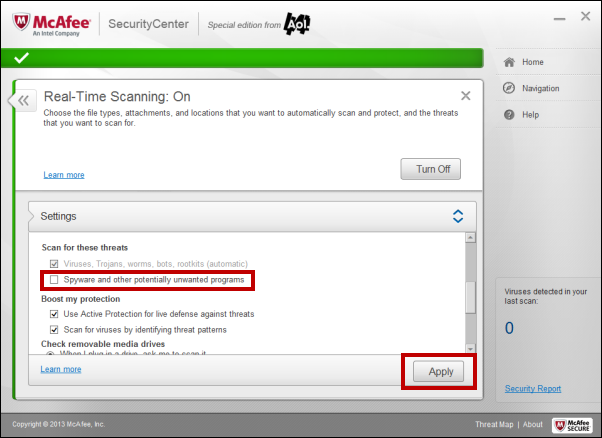
4. Click Settings.
5. Scroll down to the Scan for these threats section, uncheck the box next to Spyware and other potentially unwanted programs, and then click Apply.
Configure McAfee
The instructions given below are for McAfee Internet SecurityCenter – Special edition from AOL version 12.8.
If you’re using the McAfee Internet SecurityCenter from AOL and having difficulty accessing some of AOL's features, follow the below solution to allow AOL access.
Note: The instructions below are written for McAfee SecurityCenter Special Edition 12.8. To upgrade to the newest version of McAfee, check out our help article How do I upgrade my McAfee Internet Security Suite - Special edition
Configure McAfee SecurityCenter version 12.8 Firewall:
1. In the Windows taskbar, next to the clock, right-click the M icon, and then click Open McAfee SecurityCenter.
Note: Alternatively, you can click Start, select All Programs, select McAfee, and then click McAfee SecurityCenter.
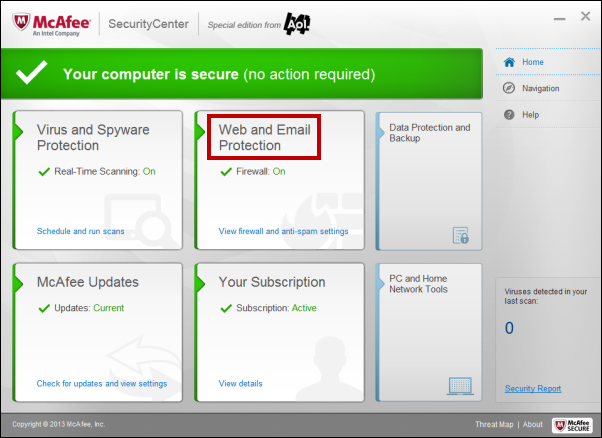
2. In the McAfee SecurityCenter window, click Web and Email Protection.
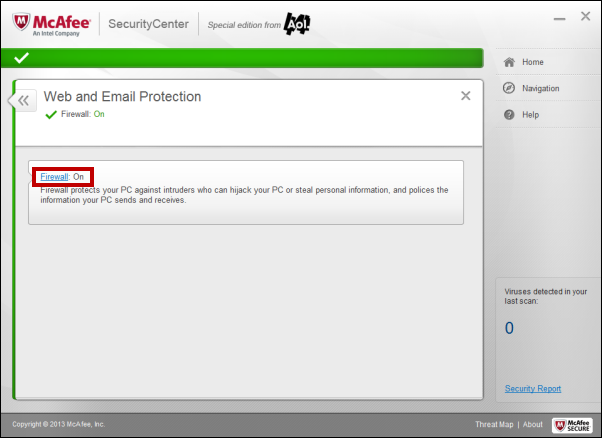
3. Click Firewall: On.
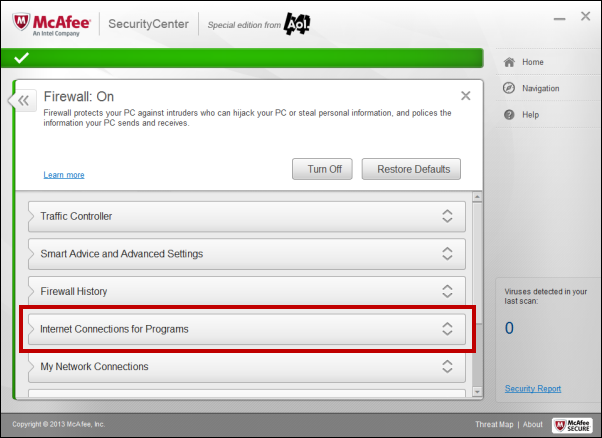
4. Click Internet Connections for Programs.
5. From the Internet Connections for Programs list, ensure that the application that you are trying to use has Full Access. If the application is blocked, click the application for which you want to grant full access, then click Edit.
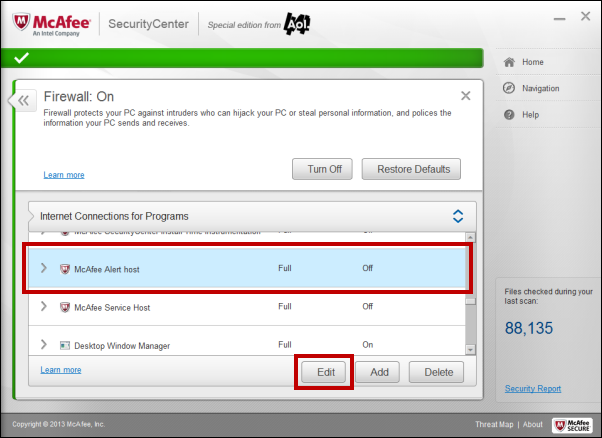
Note: If the application that you are using is not being blocked, the issue is not related to the firewall.
6. Click the Access drop-down menu, select Full, and then click Save.
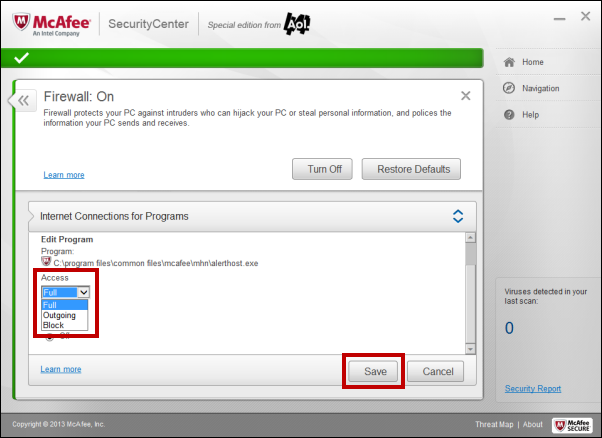
7. Close the X button to close the McAfee Security Center window.
Configure Phishing Protection
The McAfee phishing filter helps protect you from websites that are fraudulent and may solicit you for personal information. If you browse to a known or potentially fraudulent website, you are redirected to the Phishing filter page.
The phishing filter is enabled as long as the spam filters are turned on; however, if you would like the filter to ignore certain websites that you trust, you can add those sites to your Allow List.
Add websites to the Allow List
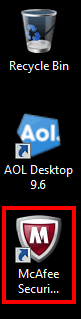
1. Double-click on the McAfee icon on your computer desktop to open the McAfee Security Center.
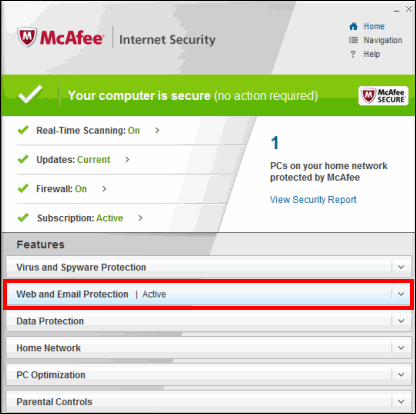
2. Select the Web and Email Protection menu.
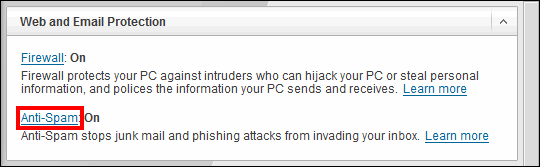
3. Click on the Anti-Spam link located below the firewall description.
4. Select the Anti-Phishing menu toward the bottom of the list.
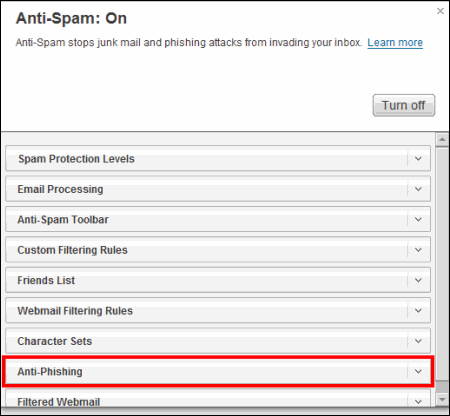
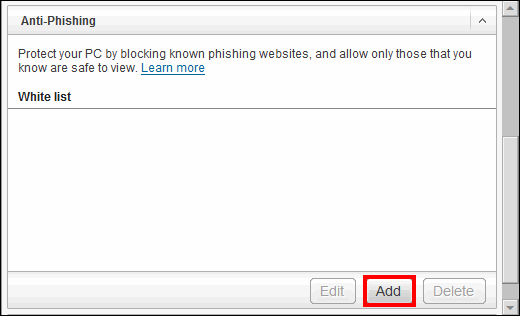
5. Click Add in the lower-right hand corner to add a website to your Allow List. This lets the phishing filter know that you trust this site.
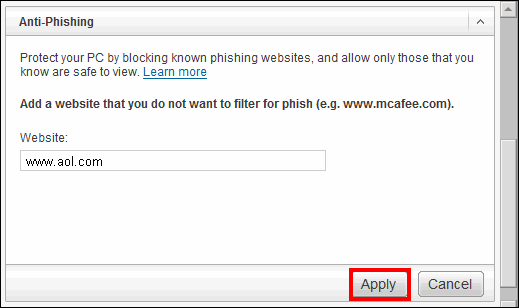
6. After you've typed the URL of a trusted website, click Apply to add the site to your Allow List. Repeat steps 5 and 6 to add more websites.
You've now configured your McAfee phishing filter.
Net Guard on McAfee
Applications on your computer try to send or receive data over the internet, which can become a threat to your computer if those applications come into contact with viruses or are accessed by hackers. McAfee Security Center’s feature Net Guard looks at where applications are trying to connect, checks the reputation of the destination against McAfee’s Global Threat Intelligence and then prevents those applications from connecting and alerts you if the location (IP address) is dangerous.
Note: To upgrade to the newest version of McAfee, check out our help article How do I upgrade my McAfee Internet Security Suite - Special edition
To turn on Net Guard:
1. In the Windows taskbar, next to the clock, right-click the McAfee (M) icon, and then click Open McAfee SecurityCenter.
Note: Alternatively, you can click Start, select All Programs, select McAfee, and then click McAfee SecurityCenter.
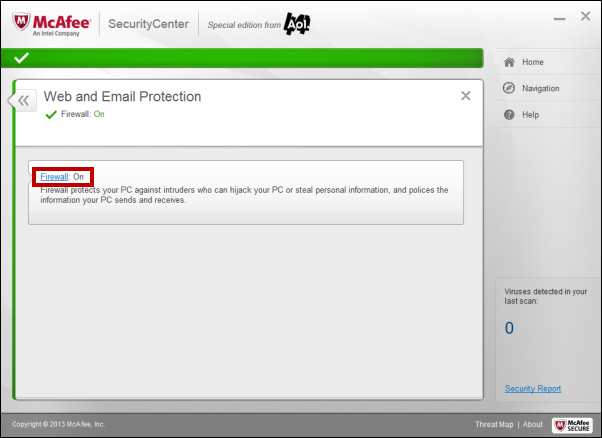
2. In the McAfee SecurityCenter window, click Web and Email Protection.
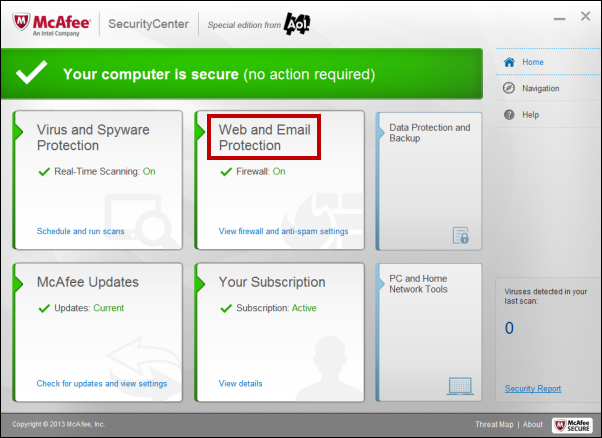
3. Click Firewall: On.
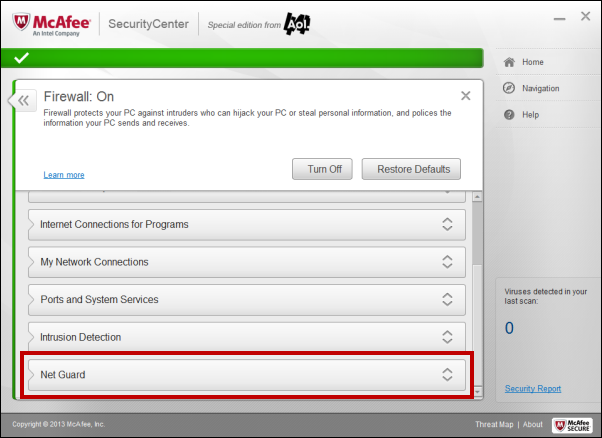
4. Click Net Guard.
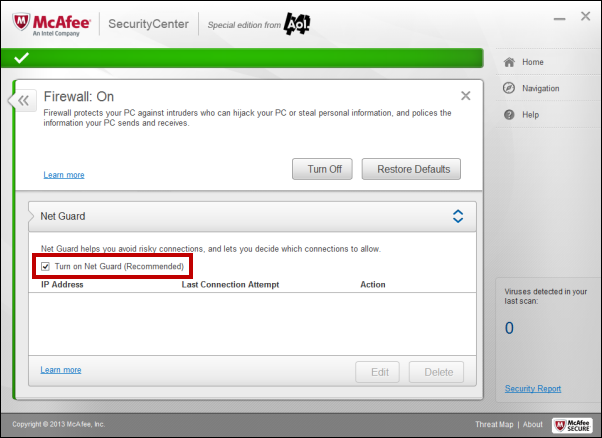
5. Check the Turn on Net Guard checkbox to ensure Net Guard will block any risky connections.
6. Click X to exit.
Use the Vulnerability Scanner
With Vulnerability Scanner, you no longer have to wait to be notified when a Windows or program update is available. Vulnerability Scanner finds them first and then installs them.
Here’s how it works:
1. Vulnerability Scanner first checks for potential security issues in your Windows files and installed programs.
2. It then scans for software updates to repair any vulnerable Windows files and programs, and provides a detailed scan report that shows the number of updates found, and a description of each update.
3. Depending on the type of scan you run, Vulnerability Scanner can automatically install all updates, or you can select the updates you want installed.
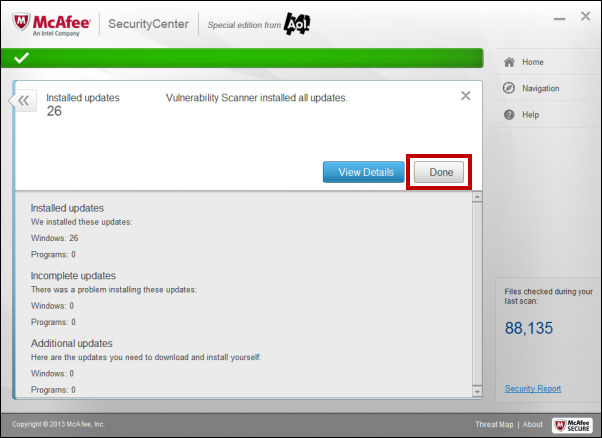
4. Finally, Vulnerability Scanner provides a summary of installed or incomplete updates, and lets you know if there are additional updates that you need to install yourself.
To use Vulnerability Scanner using McAfee Security Center - Special edition from AOL version 12.8:
1. In the Windows taskbar, next to the clock, right-click the M icon, and then click Open McAfee SecurityCenter.
Note: Alternatively, you can click Start, select All Programs, select McAfee, and then click McAfee SecurityCenter.
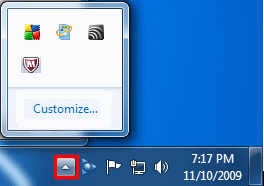
Tip: If you're using Windows 7 and don't see the McAfee icon next to the clock, click the arrow next to the clock to reveal hidden icons.
2. Click PC and Home Network Tools.
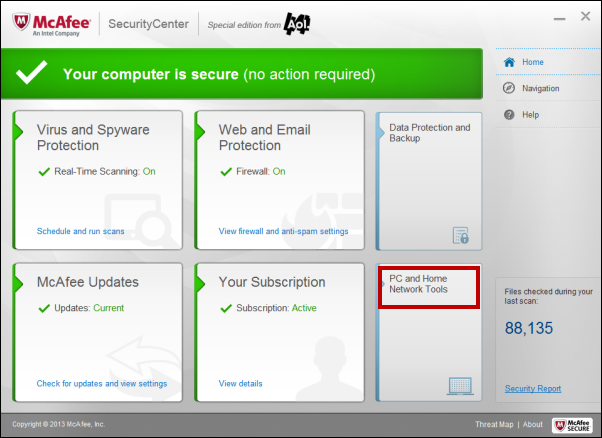
3. Click the Vulnerability Scanner link.
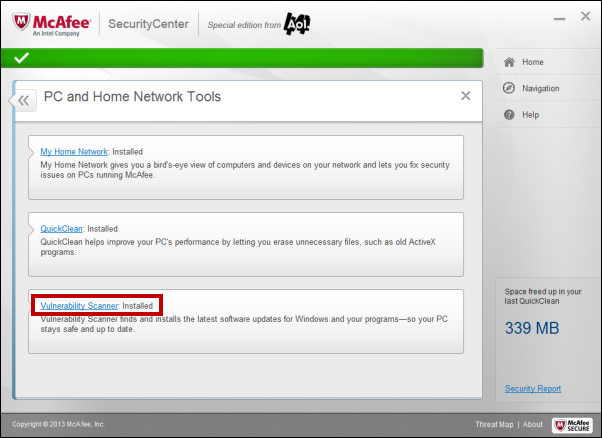
4. On the Vulnerability Scanner window you have the option to customize the scan or schedule a scan. By clicking Custom scan settings you can select if you’d like to check for Windows updates.
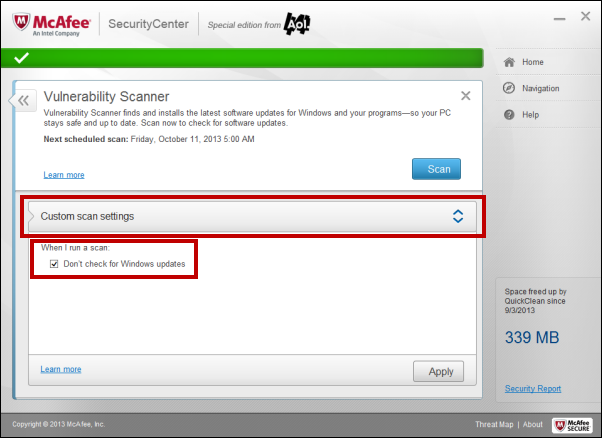
Or by clicked Scheduled scan settings you can schedule how often you’d like to schedule your Vulnerability Scan.
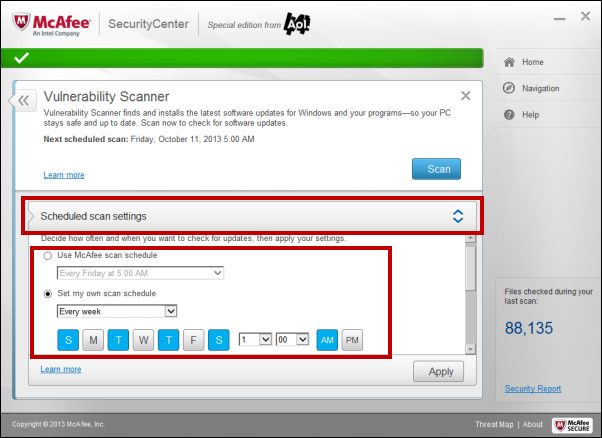
To begin the Vulnerability Scanner, click Scan.
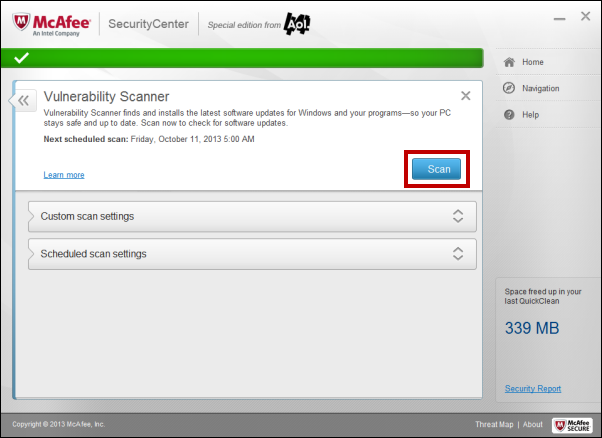
5. Once Vulnerability Scanner has found new updates, click Install updates.
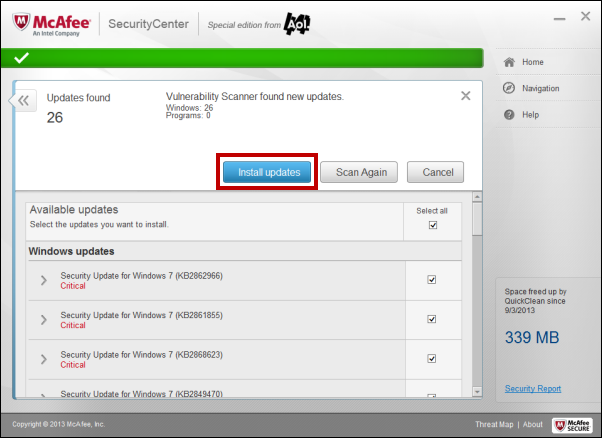
6. Once Vulnerability Scanner has installed all updates, if you’d like to view the details click View Details. Otherwise, click Done to exit Vulnerability Scanner.
McAfee Network Manager
McAfee Network Manager presents a graphical view of the computers and components that make up your home network. You can use PC and Home Network Tools to remotely monitor the protection status of each managed computer in your network and to remotely fix reported security vulnerabilities on those managed computers.
Note:
The instructions given below are for McAfee SecurityCenter - Special edition from AOL version 12.8. For instructions on how to use McAfee Network Manager, click on the version of McAfee you currently have installed on yourcomputer. If you've installed McAfee after October 14, 2013 you are using version 12.8. To upgrade to the newest version of McAfee, check out our help article How do I upgrade my McAfee Internet Security Suite - Special edition
McAfee Network Manager Features and Tools
Below is some information about the Network Manager features and the PC and Home Network tools. There is also some descriptions about each of the system icons.
McAfee Network Manager Main Features
Graphical network map: PC and Home Network Tools' network map provides a graphical overview of the security status of the computers and components that make up your home network. When you make changes to your network (for example, adding a computer), the network map recognizes those changes. You can refresh the network map, rename the network, and show or hide components of the network map to customize your view. You can also view the details associated with any of the components displayed on the network map.
Remote management: Use the PC and Home Network Tools network map to manage the security status of the computers that make up your home network. You can invite a computer to join the managed network, monitor the managed computer's protection status, and fix known security vulnerabilities from a remote computer on the network.
PC and Home Network Tools
The following icons are commonly used in the PC and Home Network Tools. Given along with them are the descriptions of these icons.
 | PC is connected to the network. |
 | PC is offline. |
 | PC is connected and does not have a current version of McAfee installed. |
 | PC has McAfee installed; PC is connected to the network and the PC is not trusted. |
 | PC is connected, trusted and has McAfee installed. |
 | PC is trusted and has McAfee installed, but its security status is at risk. |
 | This symbol on any of the following devices indicates that the device is an intruder to the network. |
| Online / Offline | |
|---|---|
 | Router |
 | Generic or unknown device |
 | Printer |
 | Gaming device |
 | Network storage device |
 | Network media device |
 | Mobile device |
FAQs
How do I access the network map?
1. Double-click the McAfee icon on the Windows taskbar, next to the clock.
2. Click PC and Home Network Tools.
3. Click My Home Network link.
Note: The first time you access the network map, you are prompted to trust the other computers on the network, before the network map appears.
How do I refresh the network map?
1. Double-click the McAfee icon on the Windows taskbar, next to the clock.
2. Click PC and Home Network Tools.
3. Click My Home Network link.
4. On the left side of the network map, click the Home Network icon.
5. Click My Router.
6. Click Refresh List.
How do I hide offline PCs or devices in the network map?
1. Double-click the McAfee icon on the Windows taskbar, next to the clock.
2. Click PC and Home Network Tools.
3. Click the PC or device that you want to hide.
4. Click Remove from Network Map under the PC or device's details.
How do I view item details?
You can view detailed information about any PC or device connected to your home network.
You can use the information to:
- Decide whether to include a PC and device on your network
- Determine a PC’s security status
- Diagnose protection problems
1. Double-click the McAfee icon on the Windows taskbar, next to the clock.
2. Click PC and Home Network Tools.
3. Select a PC or device on the network map to see its name, its protection status, and other information required to manage it.
How do I edit a PC name?
You can view detailed information about any trusted PC on your network, and rename PCs that are not trusted.
Renaming PCs helps you personalize your network map, and quickly identify the PCs you’re managing. You can also include descriptive information about the PC in its name, to make identifying it easy for other users. For example, a PC that’s used by everyone in a home might be called “Family PC.”
To rename a PC:
1. Double-click the McAfee icon on the Windows taskbar, next to the clock.
2. Click PC and Home Network Tools.
3. Click My Home Network.
4. Select the PC that you want to rename.
5. Click Edit Name.
6. In the Name field, type the new name.
7. Click Save.
How do I rename a device or change its type?
You can edit the name and type for each device on your network.
Renaming devices helps you personalize your network map, and quickly identify the devices you’re managing.
Defining a device’s type makes it easier to identify in the network map by giving it a descriptive icon. For example, when you define a device as a gaming device, the network map represents it with an image of a game controller.
To rename or change the type of a device:
1. Double-click the McAfee icon on the Windows taskbar, next to the clock.
2. Click PC and Home Network Tools.
3. Click My Home Network.
4. Select the device that you want to edit details for.
5. Click Edit details.
6. In the Name field, type a new name for the device.
7. From the Device Type drop-down list, select a device type.
8. Click Save.
How do I stop trusting the Home Network?
You can use the network map to leave your home network for some reason, such as if you join a home network by mistake. Leaving a network ensures that none of the users connected to that network can view information on your PC or establish a connection with it.
To stop trusting the Home Network:
1. Double-click the McAfee icon on the Windows taskbar, next to the clock.
2. Click PC and Home Network Tools.
3. Click My Home Network.
4. On the left side of the network map, click the home network icon.
5. Click About This Network.
6. Under the list of devices connected to the home network, click Don’t trust network.
Use McAfee Shredder
Deleted files can be recovered from your computer even after you empty your Recycle Bin. When you delete a file, Windows marks that space on your disk drive as no longer being in use, but the file is still there. Using computer forensic tools, you can recover tax records, job resumes, or other documents that you deleted. Shredder protects your privacy by safely and permanently deleting unwanted files.
To permanently delete a file, you must repeatedly overwrite the existing file with new data. Microsoft Windows does not securely delete files because every file operation would be very slow. Shredding a document does not always prevent that document from being recovered because some programs make temporary hidden copies of open documents. If you only shred documents that you see in Windows Explorer, you could still have temporary copies of those documents. Shredder allows you to erase your Recycle Bin contents, temporary internet files, website history, files, folders, and disks.
Note: Shredded files are not backed up. You cannot restore files that Shredder has deleted.
Note: The instructions given below are for McAfee SecurityCenter - Special edition from AOL version 12.8. To upgrade to the newest version of McAfee, check out our help article How do I upgrade my McAfee Internet Security Suite - Special edition
Erasing unwanted files with Shredder
Shredder protects your privacy by safely and permanently deleting unwanted files such as your Recycle Bin contents, temporary internet files, and website history. You can select files and folders to shred, or browse to them.
1. In the Windows taskbar, next to the clock, right-click the M icon, and then click Open McAfee SecurityCenter.
Note: Alternatively, you can click Start, select All Programs, select McAfee, and then click McAfee SecurityCenter.
Tip: If you're using Windows 7 and don't see the McAfee icon next to the clock, click the arrow next to the clock to reveal hidden icons.
2. In the McAfee SecurityCenter window, click Data Protection.
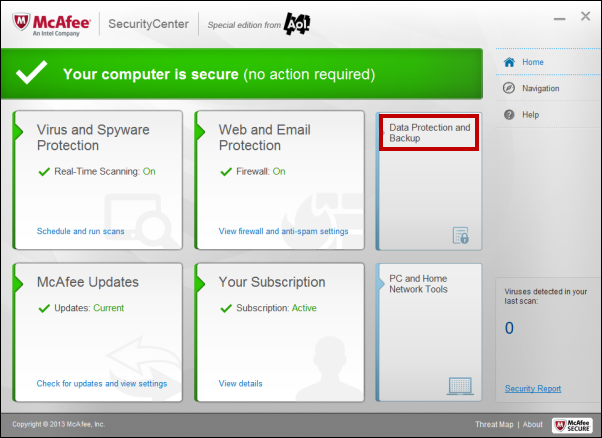
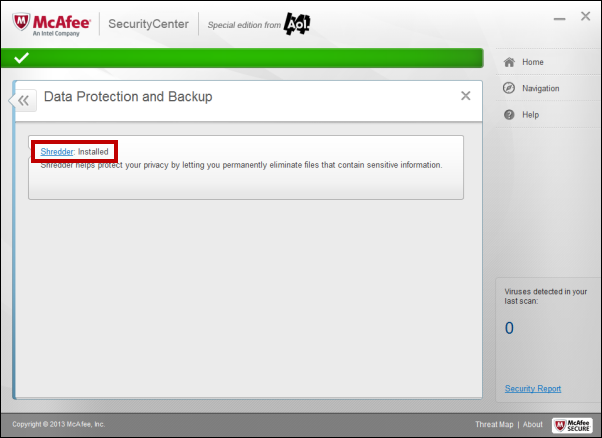
3. Under Data Protection, click the Shredder link.
4. Under Choose a folder to shred, select Recycle Bin, Temporary Internet Files or Let me choose.
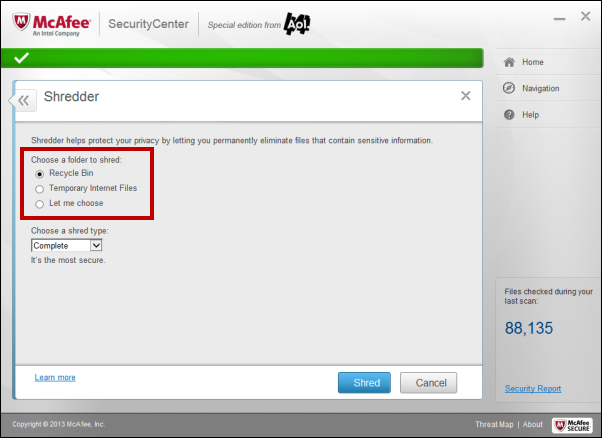
Note: If you select Let me choose, McAfee will prompt you with a Browse For Folder window once you click Shred. This will allow you to select a specific folder on your computer to shred.
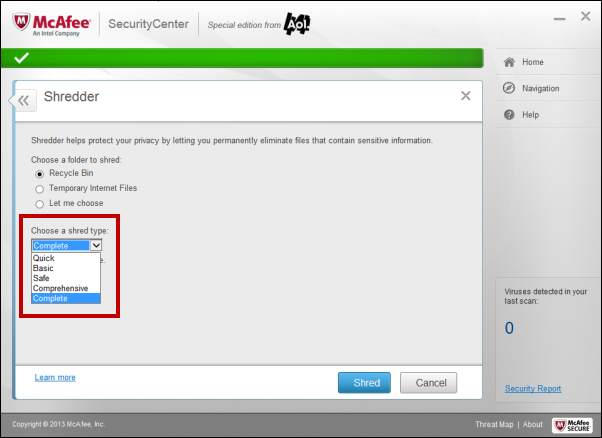
5. Use the Choose a shred type: drop-down menu to select a type of shred.
- Quick: Shreds the selected items one time.
- Basic: Shreds the selected items twice a day.
- Safe: Shreds the selected items five times.
- Comprehensive: Shreds the selected items seven times.
- Complete: Shreds the selected items up to ten times. A higher number of shredding passes increases your level of secure file deletion.
6. Click Shred.
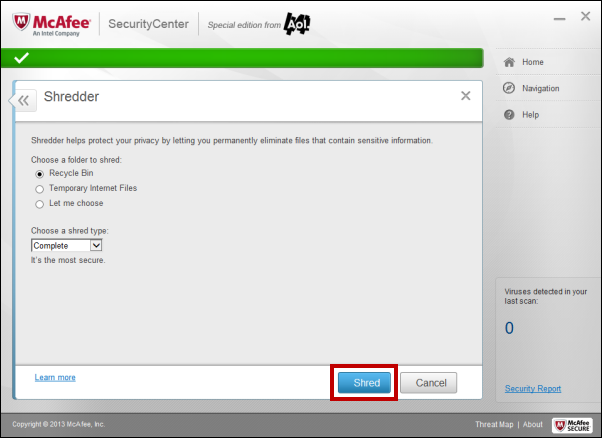
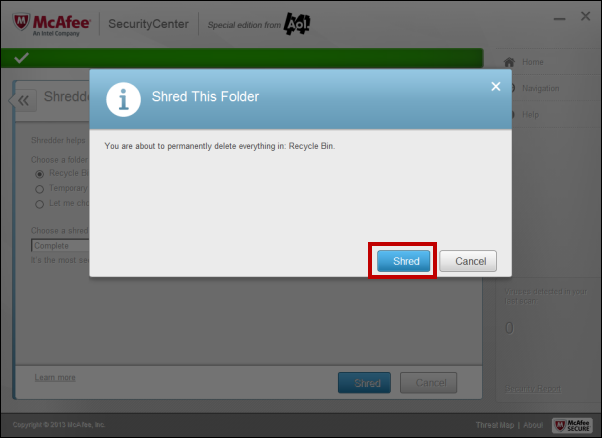
7. In the Shred This Folder window, click Shred again.
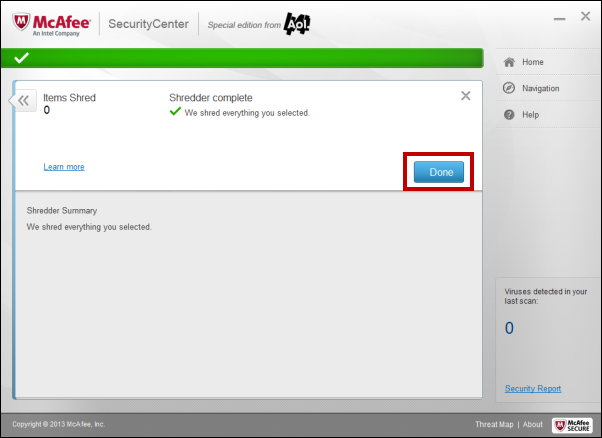
8. Click Done. Your files have been shredded.
Understanding Security Alerts
If real-time scanning detects a threat, an alert appears. For most viruses, trojans, scripts and worms, real-time scanning automatically tries to clean the file, and alerts you. For potentially unwanted programs and SystemGuards, real-time scanning detects the file or change, and alerts you. For buffer overflow, tracking cookies, and script activity, real-time scanning automatically blocks the activity, and alerts you.
You can then choose how to manage detected files, detected email, suspect scripts, potential worms, potentially unwanted programs, SystemGuards or buffer overflows.
How do I manage my alerts?
McAfee employs an array of alerts to help you manage your security. These alerts can be grouped into three basic types: Red Alert, Yellow Alert and Green Alert.
Red Alerts
A red alert requires a response from you. In some cases, McAfee cannot determine how to respond automatically to a particular activity. In these cases, the red alert describes the activity in question and gives you one or more options to select.
Yellow Alerts
A yellow alert is a non-critical notification that usually requires a response from you. The yellow alert describes the activity in question and gives you one or more options to select.
Green Alerts
In most cases, a green alert provides basic information about an event and does not require a response.
Configuring alert options
If you choose not to show an alert again and later on you change your mind, you can go back and configure that alert to appear again. For more information about configuring alert options, see your Security Center documentation.
Enable/Disable Automatic Updates for McAfee
The instructions given below are for McAfee Internet Security Suite - Special edition from AOL version 12.8.You can enable or disable automatic updates for McAfee Internet Security Suite - Special edition from AOL version 12.8. Updating the software will keep your computer updated and secure from the latest viral threats.
To upgrade to the newest version of McAfee, check out our help article How do I upgrade my McAfee Internet Security Suite - Special edition.
Note: Automatic updates are enabled by default in McAfee Internet Security Suite - Special edition from AOL.
Enable Automatic Updates
To enable automatic updates:
1. In the Windows taskbar, next to the clock, right-click the McAfee (M) icon, and then click Open McAfee SecurityCenter.
Note: Alternatively, you can click Start, select All Programs, select McAfee, and then click McAfee SecurityCenter.
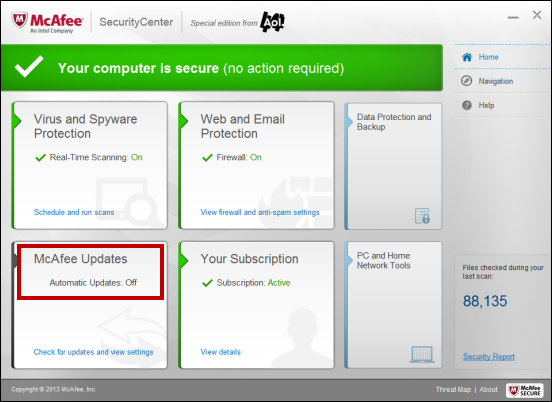
2. On the McAfee SecurityCenter window, click McAfee Updates.
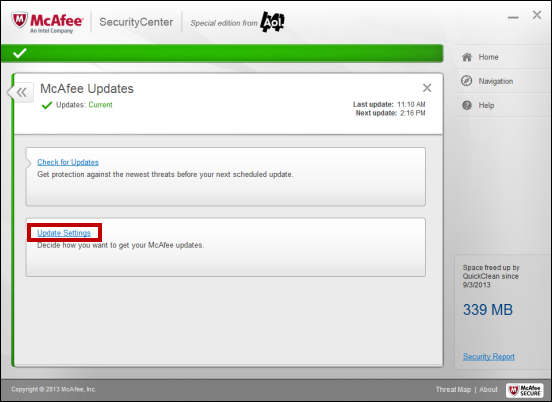
3. Click Update Settings.
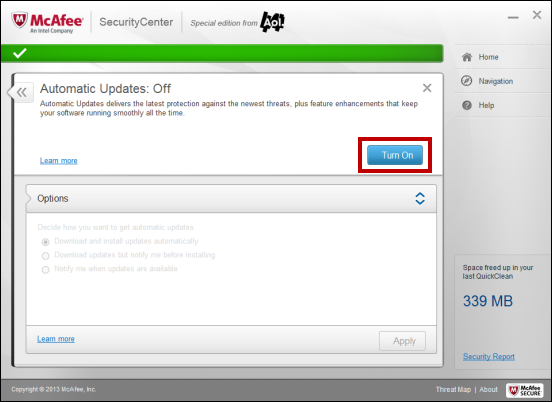
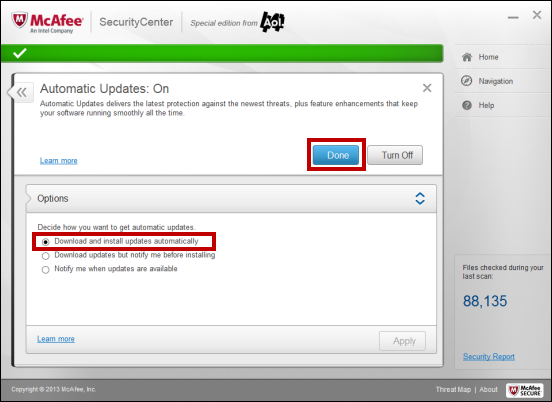
5. Select Download and install updates automatically and click Done.
Disable Automatic Updates
To disable automatic updates:
1. In the Windows taskbar, next to the clock, right-click the McAfee (M) icon, and then click Open McAfee SecurityCenter.
Note: Alternatively, you can click Start, select All Programs, select McAfee, and then click McAfee SecurityCenter.
2. On the Home Page, click McAfee Updates.
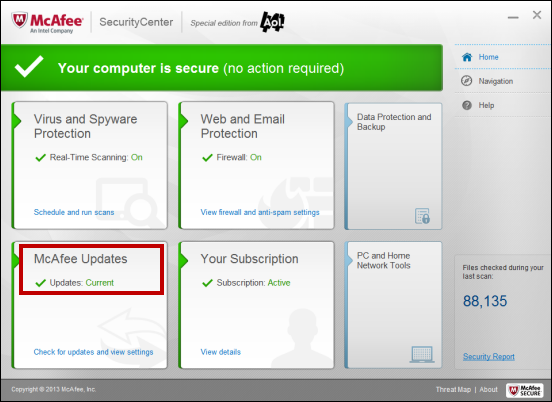
3. Click Update Settings.
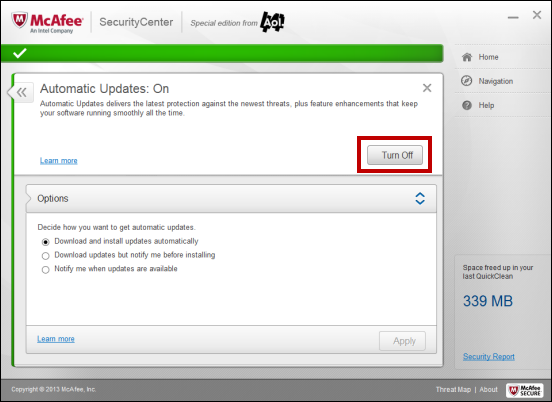
4. Click Turn off.
Note: Remember to turn automatic updates on at a later point. With automatic updates turned off your computer is vulnerable to the latest security threats.
Manually Updating McAfee
The instructions below are for users who have McAfee Security Center - Special edition from AOL version 12.8. To upgrade to the newest version of McAfee, check out our help article How do I upgrade my McAfee Internet Security Suite?
To update the McAfee software, follow some simple steps below.
To update McAfee:
1. In the Windows taskbar, next to the clock, right-click the McAfee (M) icon, and then click Open McAfee SecurityCenter.
Note: Alternatively, you can click Start, select All Programs, select McAfee, and then click McAfee SecurityCenter.
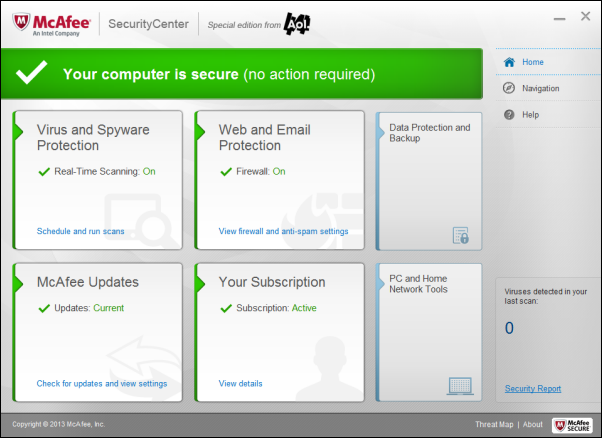
2. On the McAfee SecurityCenter window, click the Check for updates and view settings link.
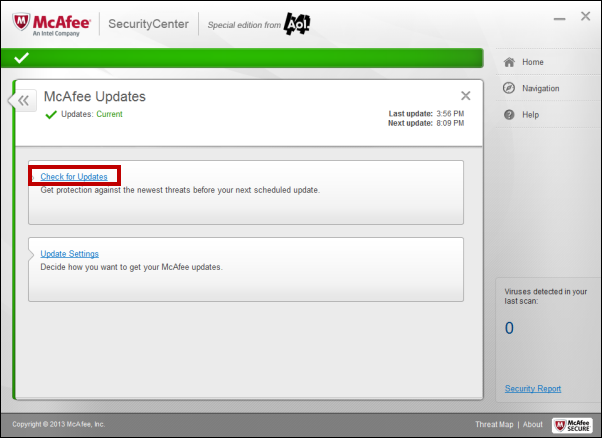
3. Click Check for Updates.
Notes:
- McAfee will check for updates, and download and install the updates.
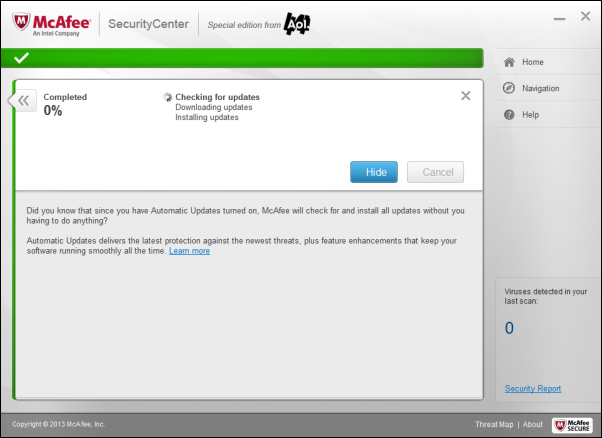
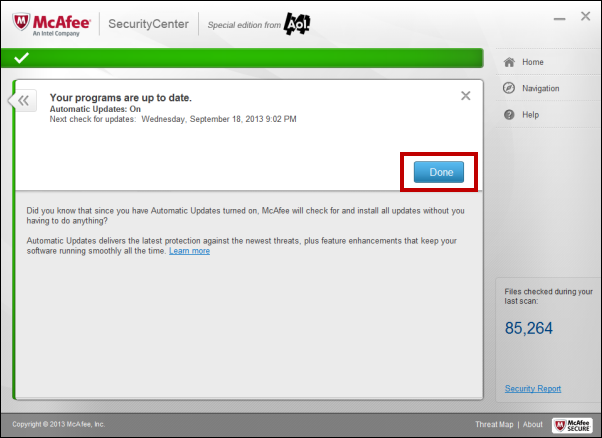
- Once the updates are installed, you'll receive the message Your programs are up to date, click Done.